

Clean Up Typo'd Email Addresses in HubSpot With One Ops Hub Workflow
One Ops Hub Format Data action catches gmail.con and the rest of the typos sitting in your email property. Here is the code, and how to widen it past the one everybody knows about.

2. Use Operations Hub to Set Up Your Formatting Code
Now we are going to use Ops Hub actions. If you have already read our "How To Transform and Format Phone Numbers Automatically" hack you will find this an absolute breeze.
Add a new action and go down to Data Ops. From here select Format Data and follow these steps.
1. Select the property you want to format, in this case it'll be email.
2. Turn Custom Mode ON.
3. Copy and paste the following code into the input box. This code takes an email address, trims off the last four characters, checks if they are ".con", and replaces them with ".com".
concat(left(Email, length(Email) - length(right(Email,4))),replace(right(Email, 4), ".con", ".com"))
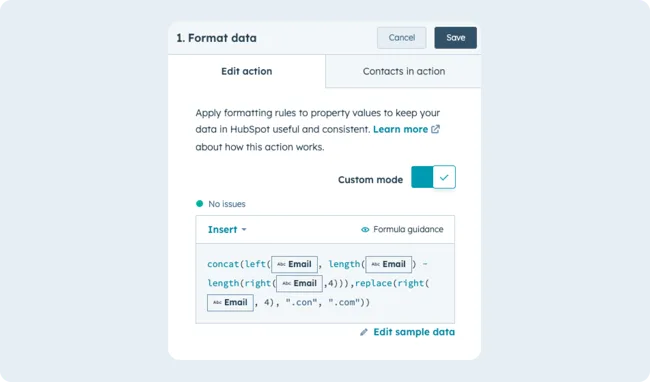
The red words in the code are properties and must be selected from the list of existing properties. They can also be changed to whichever property you are trying to manipulate.
The purple words are the errors you are trying to manipulate. The first is the original error, and the second is what you wish to change it to.
Know how many typo emails sit in your CRM?
Bounces from a typo look the same as bounces from a bad list.
3. Copy your new formatted output to the email property
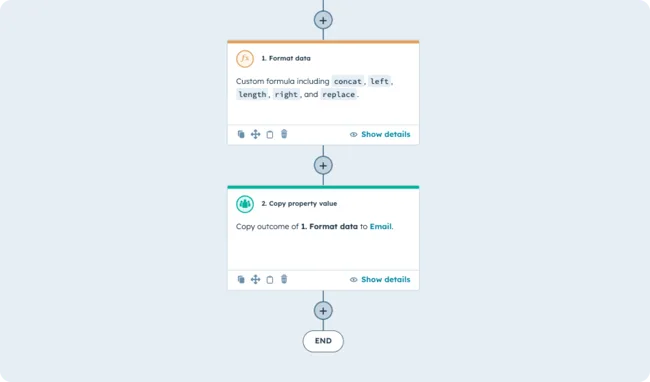
Now that you have your updated email, you will need to copy this to the email property. You can do this by creating a copy property value action. Use the drop-down to select "action outputs" and select "[String] value".
For the "Property to copy "[String] value" to select Email.
Your workflow should look a little something like this:
4. Turn On Your Workflow
And there you have it. Switch the workflow on and it will fix those addresses as they arrive. The rule is easy to tweak for whatever mistake you find next, just keep an eye on the numbers within the code. For instance, if the error was ".gamil" instead of ".gmail", you'd want to adjust the code to check the last six characters.
Which typos are actually on your list
.con is the famous one, because the n sits next to the m. It is rarely the only one. Before you build the rule, export the email property, sort it, and look for the patterns an Australian list tends to carry:
- gmail.con, hotmail.con, outlook.con. Last four characters, which the code above already handles.
- gmail.co and hotmail.co, where the m never got typed at all.
- bigpond.con.au and the other .com.au misses. Here the string you want is the last seven characters, so use
right(Email, 7)and replace ".con.au" with ".com.au". - gmial.com and hotmial.com, where the error is in the domain name rather than the suffix, so the replace has to run across the whole address instead of the last few characters.
Each one is the same action with different numbers in it. Build them as separate Format Data steps inside the one workflow and you can add the next pattern the day you find it.
Why a typo is a compliance problem, not just a bounce
The obvious cost of a bad address is a bounce. Two less obvious ones sit under the Spam Act 2003, which ACMA enforces.
The Act says every commercial message has to identify the sender and carry a working unsubscribe. Neither does any good in a mailbox that does not exist, and a list with a steady bounce rate is the quickest way to get the rest of your mail filtered, at which point the person who does want out cannot find the unsubscribe and reports you instead.
The second one is worse. Some typos resolve. If a contact fat-fingered their address into something that belongs to a real person, you are now sending commercial mail to someone who never gave you consent, and the burden of proving consent sits with you.
Wondering what else your bounce rate is hiding?
One typo rule fixes gmail.con and nothing else on the list.
This is one rule inside a bigger job. If you want the whole thing, read automating full CRM data hygiene, step by step, and building a custom company-creator workflow for the contacts that arrive with no company attached.
If you would rather it was just done, that is our RevOps and HubSpot work.