

Pre-Fill HubSpot Forms from Email Links Using URL Parameters
Send a renewal reminder and the form on the other side already has the contact's details in it. Here is the token syntax that does it, and the consent check to run before you send.

What are URL Parameters & Steps to set it up
Essentially, URL parameters are pieces of information added to the end of a URL to pass data from one place to another. They consist of a key (the name of the data) and a value (the actual data). For example:
https://yourwebsite.com/landing-page?firstname=John&[email protected]
Still asking contacts for data you already hold?
Most forms ask for the email address that just clicked through.
In this example:
- firstname is the key, and John is the value.
- email is the key, and [email protected] is the value.
When someone clicks this link, the data (John and [email protected]) is passed to the landing page, where it can be used to pre-fill form fields.
Here's where it earns its keep on a real campaign. You're sending renewal reminders, and the renewal form asks for state and ABN, both of which you already hold on the contact record. Put them in the link and the contact confirms what's there instead of retyping it. Same for an event invite that needs a job title, or a re-engagement email pointing at a preferences form. Every field you pre-fill is a field nobody abandons the form over.
Simple, right? Here's how you can do it for yourself.
1. Create an email in HubSpot
- Navigate to Marketing > Email > Create Email in the top right corner.
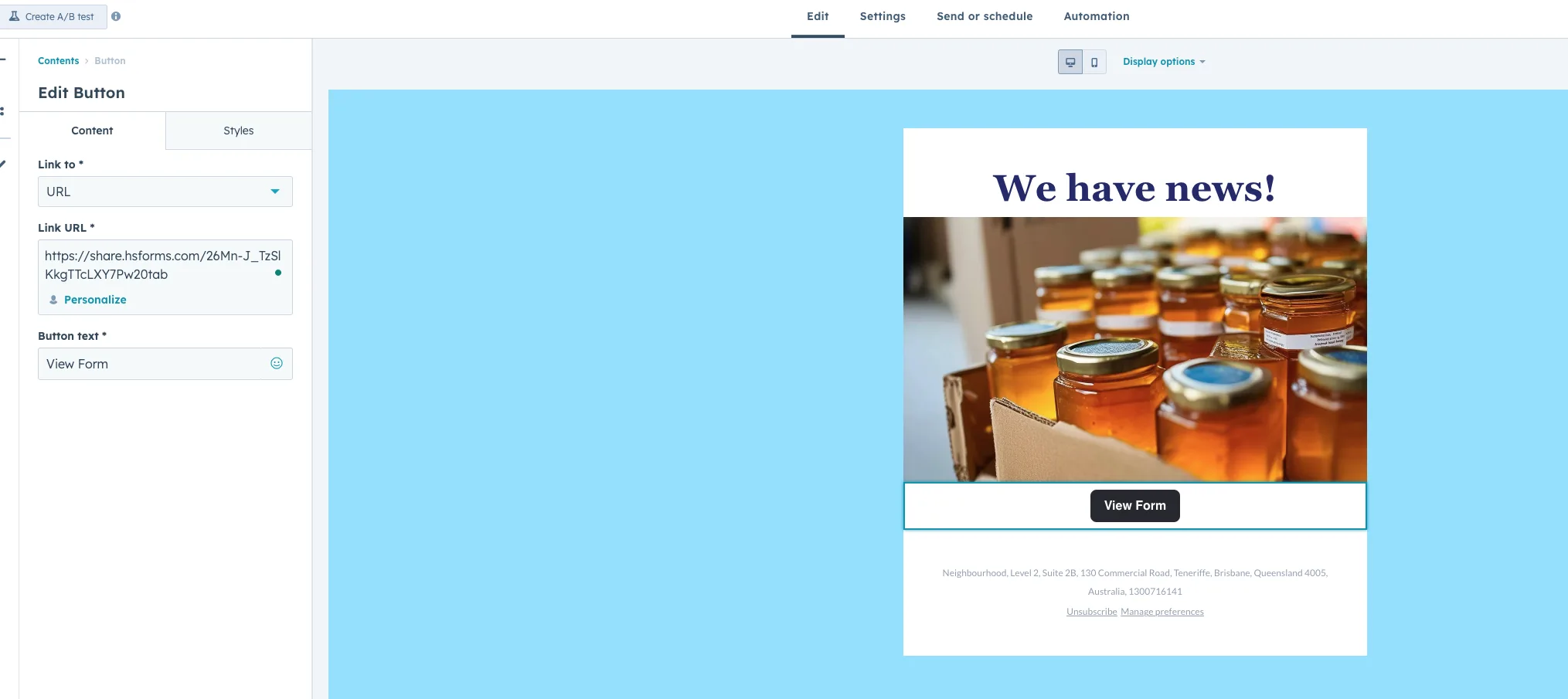
- Once the email builder is open, add a button that directs to your form's landing page via a URL.
In our example image below, we have used a direct link to a HubSpot form.
2. Start by pasting in Your Landing Page URL
To begin, paste the URL of the landing page that contains your form or the link to a HubSpot form. For example:
https://share.hsforms.com/26Mn-J_TzSlKkgTTcLXY7Pw20tab
3. Add a Question Mark (?) to Start the Parameters
Add a ? to the end of the URL. This tells the browser that parameters are being added. For example:
https://share.hsforms.com/26Mn-J_TzSlKkgTTcLXY7Pw20tab?
4. Add your First Parameter
Add the first internal property name to the URL. For example, to pass the recipient's first name, you can use:
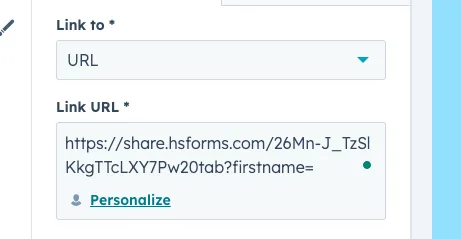
https://share.hsforms.com/26Mn-J_TzSlKkgTTcLXY7Pw20tab?firstname={{ contact.firstname }}
Here is how we get those values:
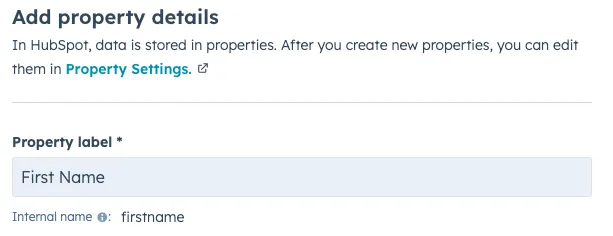
- firstname is the internal value of the HubSpot default property "First Name"
{{ contact.firstname }}is a HubSpot personalisation token that dynamically inserts the recipient's first name. It is a combination of the HubSpot object (contact) and the internal value for firstname.
Basically, we are telling HubSpot to autofill the First Name form field with the first name of the contact who receives this email.
Still with us?
5. Add Additional Parameters
To pass more data, use an ampersand (&) to separate each internal value pair. For example:
https://yourwebsite.com/landing-page?firstname={{ contact.firstname }}&email={{ contact.email }}
- email is the internal value for Email Address in HubSpot.
{{ contact.email }}dynamically inserts the recipient's email address.
The same pattern works for any property you hold, so a renewal link might carry state and a custom abn property as well.
6. Test Your Email and Link
- Send a test email to yourself or a colleague.
- Click the button or link in the email to check the form fields on the landing page are pre-filled with the correct data.
- Verify that the URL parameters are working as expected by checking the URL in your browser.
- Send away.
7. Additional Tips
- To find the internal value for a property, navigate to Settings > Properties > open the property you want to use > copy the Internal Name.
- You can use the Personalise button to automatically add personalisation tokens. This saves you typing the token out by hand.
One Thing to Settle Before You Send
Pre-filled links get used hardest on re-engagement: lapsed contacts, renewals, event invites. That is also the sending you want to be sure of. Under the Spam Act 2003, ACMA separates express consent, where someone has clearly agreed to hear from you, from inferred consent, which rests on an existing business relationship or a work address published without a no-spam statement. The burden of proof sits with the sender, so if you can't say which basis a list is on, settle that before you build a clever link for it. Keeping the underlying records clean helps here too, which is what keeping the data these forms create clean afterwards is about.
Wrapping Up
Using URL parameters in your email buttons or links makes the experience effortless for your contacts. Imagine receiving an email, clicking a button, and landing on a form that's already filled out with your details, it feels personal and saves time. This small touch can make a big difference in how your audience engages with you.
Wondering which of your forms could be shorter?
Nobody has looked at the field list since it was built.
It's a simple way to show you care while making your marketing more effective. Two close relatives worth knowing: capturing UTM data the same way for campaign reporting, and using the same trick for personalised meeting links.
If you'd rather have the forms, the properties and the flow between them set up once and set up right, that's how we set up forms and data flow for growing teams.