

Create a Day of the Week Property for Smarter HubSpot Automation
Which day of the week do your deals actually close? This hack turns any date property into a Day of the Week value your workflows and lists can read.

Why is this hack helpful?
Have you ever wanted to know which day of the week your contacts are most active or when deals typically close? Creating a 'Day of the Week' property in HubSpot can be incredibly valuable for understanding patterns in your business operations.
While you can see day-of-week data in reports, this hack takes it a step further by allowing you to use the day of the week as a property in workflows and lists. This means you can trigger automations, segment your database, and personalise your outreach based on the specific day a contact or deal was created, modified, or closed.
Do you know which day your deals actually close?
Most people have a hunch about it and no property to check.
In Australia the calendar year is rarely the year that counts. The financial year runs 1 July to 30 June, which is the year the ATO and your finance team work to, so the deals people push to get signed before EOFY bunch up in the last weeks of June. Put a day of the week property next to the month and the pattern shows up: which weekday those June close dates fall on, and whether the last week of June is one big Friday or a scramble that runs all week.
While there are different ways to achieve this outcome with Operations Hub, this HubSpot Hack works entirely without it.
Steps to Set It Up
1. Create a Date as Day of the Week Custom Property
- Go to Settings > Properties > Create a New Property
- Object type: Contact or Deal (use the same object for all properties in the hack)
- Group: Choose a relevant group
- Label: Name the property something like "Date as Day of the Week".
- Field type: Dropdown:
- Sunday
- Monday
- Tuesday
- Wednesday
- Thursday
- Friday
- Saturday
This property will store the Day of the Week field.
2. Create a new Date Property (or use an existing one)
The next step requires you to select the Date property that you want the day of the week to be based on. It's important to note that the property must be a date property and must not include a time. For this example, I will create a new one.
- Go to Settings > Properties > Create a New Property
- Object type: Contact or Deal (use the same object for all properties in the hack)
- Group: Choose a relevant group
- Label: Name the property something related to the Date you are trying to track.
- Field type: Date
This property will store the date that the day of the week property (created in step 1) will be based on.
3. Create a Calculated Property
The next step requires you to select the Date property that you created in step 2 and calculate a string based on the beginning of time itself (or 01/01/1970). While this might sound confusing, it will all make sense soon. If you want to come at dates from the other direction, storing a Unix timestamp and turning it into something a person can read, that is the timestamp version of this hack.
- Go to Settings > Properties > Create a New Property
- Object type: Contact or Deal (use the same object for all properties in the hack)
- Group: Choose a relevant group
- Label: Name the property, e.g. Weekday Calculation
- Field type: Calculation
- Custom Equation
- String
- number_to_string(((time_between([properties.today_s_date], ((1 / 1) / 1970)) / 86400000) / 7))
This property will calculate and output a string, and, if done correctly, a number in the 2000s. The text in bold is where your own property goes, the one you created in Step 2. If you click Insert > Properties > Choose your property, it will show up as a square box in the formula.
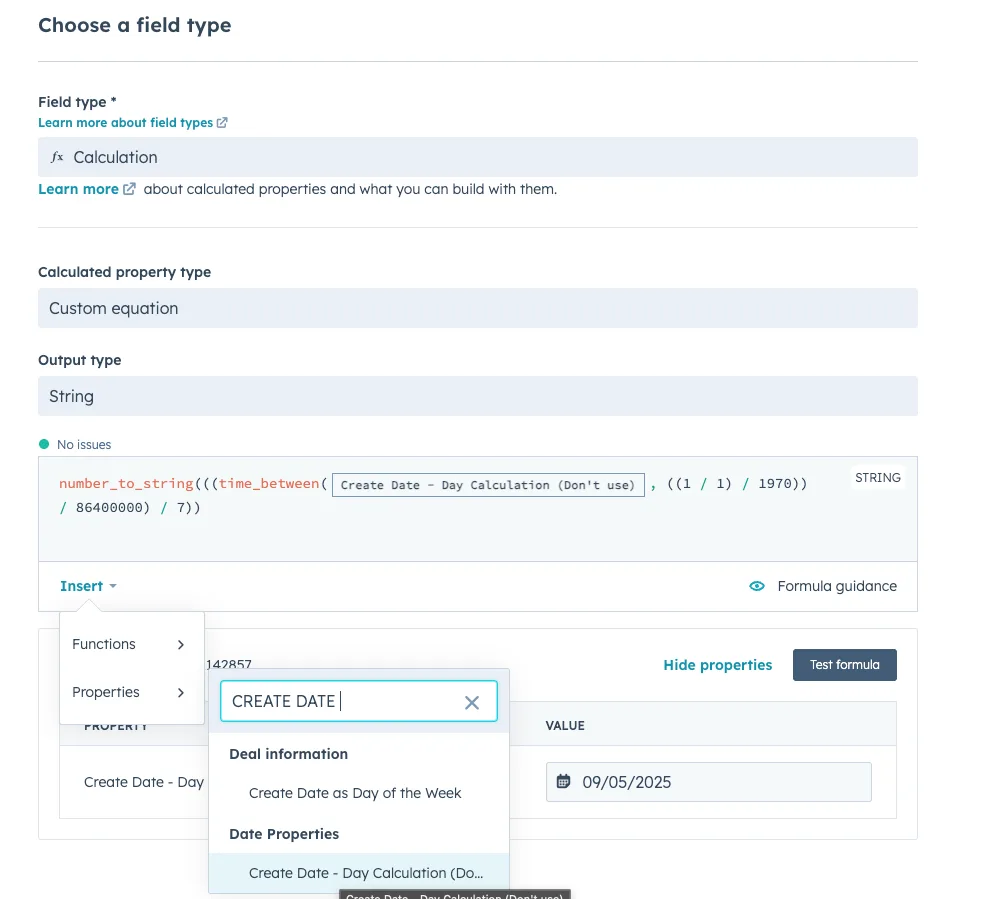
4. Create the Workflow to Populate the Day of the Week
In this example, I will base the Day of the Week property on the Create Date. As the Default Create Date in HubSpot includes a time, I will copy the Create Date to another Date Property in the first step of the workflow. However, if your date already doesn't include a time, this step isn't needed.
- Go to Automation > Workflows > Create a new workflow
- Set the Trigger
- Create Date is Known
- Add the Action to Edit the Contact Property, only if you are copying Create Date
- Add an Edit record action.
- Property to edit: This will be the date property you created
- Choose a date or date property: Create Date
- Press Save
- Create a Branch
- Friday: Weekday Calculation contains any of ".142"
- Saturday: Weekday Calculation contains any of ".285"
- Sunday: Weekday Calculation contains any of ".428"
- Monday: Weekday Calculation contains any of ".571"
- Tuesday: Weekday Calculation contains any of ".714"
- Wednesday: Weekday Calculation contains any of ".857"
- Thursday: Weekday Calculation doesn't contain any of "."
- Add an Edit record action after each Branch:
- Property to edit: This will be the Date as Day of the Week property you created
- Choose a Value: Choose the relevant day to the branch
- Press Save
- Turn on the Workflow
Wrapping Up
This HubSpot hack is a brilliant way to add another layer of intelligence to your CRM. You can see day-of-week trends in your reports, and you can now use the property to power workflows and lists, which opens up new ways to automate, segment and personalise your marketing and sales. Check your reports and lists filtered by day of the week every so often and the patterns in your operations turn up on their own.
Got a pile of one-off properties like this already?
Every portal collects a few of these, and the reasons get lost.
The same date-property approach carries across the rest of the portal. It is the same date-property trick used for age, and there is a walkthrough on using the same approach for contract end dates. If you would rather someone else built the set, that is our RevOps and HubSpot work. Happy HubSpotting.