

Automate Post-Purchase Emails From Your Customer's Order History
Segment ecommerce customers by order count and trigger the right post-purchase email automatically in HubSpot, and what the Spam Act says about consent once you start using that data for upsell.

Why segment post-purchase emails by order count
A first-time buyer and a customer on their tenth order are in different places, and a single generic "thanks for your order" email treats them the same. That's a missed chance to say something relevant to where they actually are, welcome and reassurance for a new customer, recognition and a reason to keep buying for a regular one.
HubSpot workflows can segment customers automatically by purchase history and send each group an email that actually matches their stage: a welcome sequence for new buyers, a loyalty message for regulars, and something more generous for your highest-order customers.
Initial preparation
First, make sure Order stages are properly configured. This is generally where ecommerce platforms, such as Shopify, sync orders into HubSpot. If you haven't set this up, see HubSpot's Shopify data sync guide, or the fuller walkthrough on getting Shopify and HubSpot talking to each other properly.
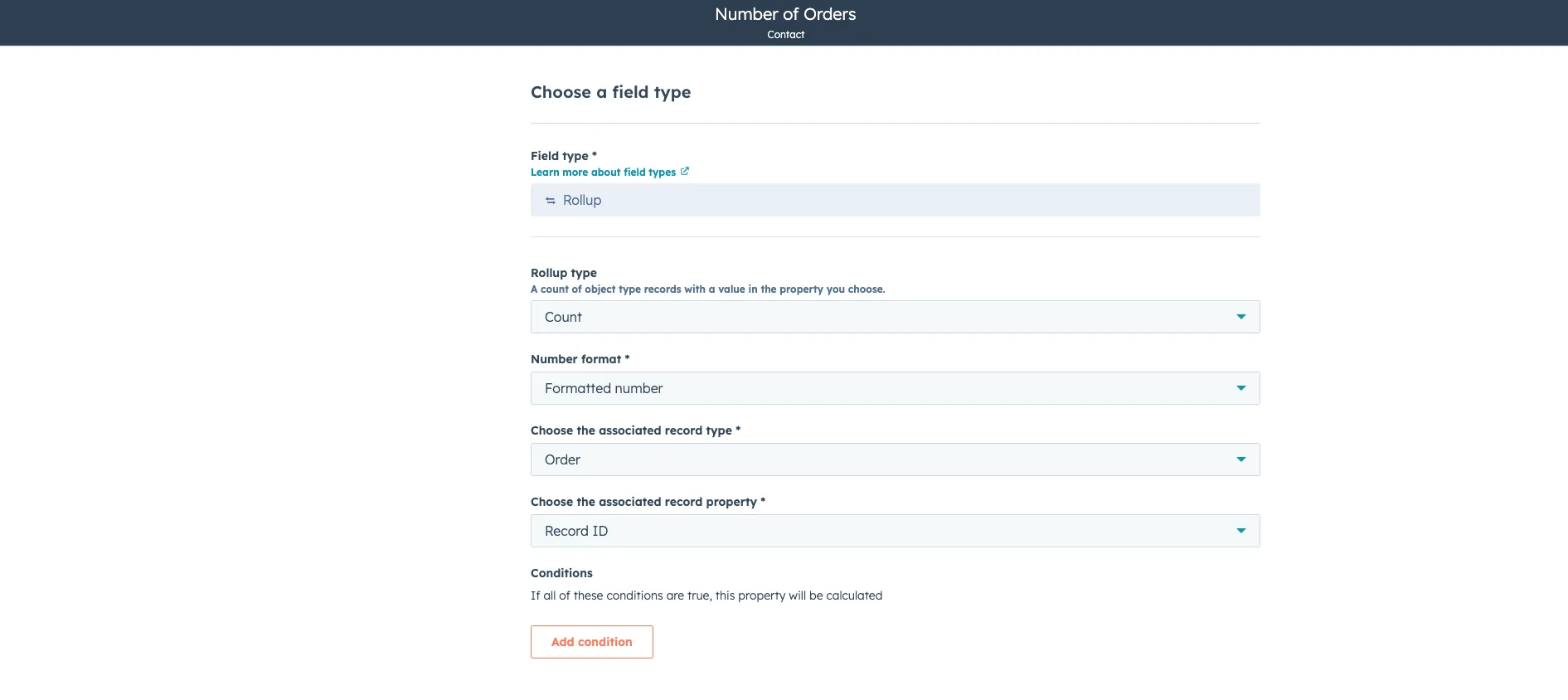
Second, create a rollup property that counts the number of orders a contact has made. Go to Settings > Properties > Contact Properties > Create new property > Number of Orders, and set:
- Field type: Rollup
- Rollup type: Count
- Number format: Formatted Number
- Associated record type: Order
- Associated record property: Record ID
This tracks the number of orders a contact has made. The same rollup property approach also works for a contact's first and most recent order date, which is worth setting up alongside this one.
Building the workflow
Not sure how your order data lands in HubSpot?
Order count is only useful if every purchase writes back.
Now build a workflow that detects a new purchase and sends the right email based on the contact's order history.
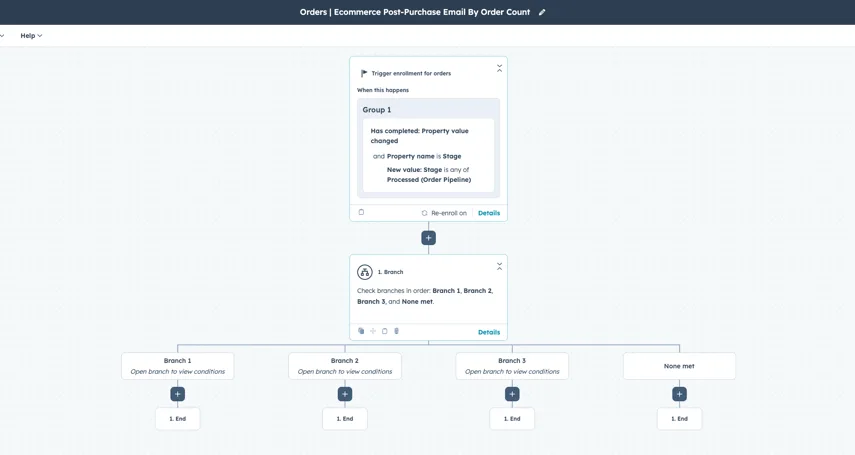
- Go to Workflows > Create Workflow > From scratch > Data Values > Property Value Changed > Order Based.
- Set the enrolment trigger to the order Stage being "any of Processed." Processed is the default stage in Orders for when a payment is taken and an order is placed in Shopify.
- Enable re-enrolment so the workflow fires every time someone makes a new purchase.
- Add a Branch based on the Associated Object: Contact, using the Number of Orders rollup property you created.
- Create your segments:
- Branch 1: Number of Orders is exactly 1 (first-time customers).
- Branch 2: Number of Orders is between 2 and 4 (repeat customers).
- Branch 3: Number of Orders is 5 or more (VIP customers).
- In each branch, add a "Send email" action with the matching email template.
- Name the workflow something specific, for example "Orders | Ecommerce Post-Purchase Email By Order Count."
- Turn it on once your segmented email templates are actually built.
What each segment's email should actually do
First-time customer (1 purchase)
This is about validation. A warm, genuine thank you, reassurance that they made a good decision, a few getting-started tips relevant to what they bought, a short version of your brand story, a support channel if they have questions, and optionally a small discount for their next purchase. Subject line direction: something that welcomes them in plainly, or thanks them for trying you.
Repeat customer (2 to 4 purchases)
Acknowledge that they're a repeat customer specifically, not just a customer. Share content or tips they wouldn't get on a first visit, point them at complementary products, offer a genuine thank-you discount, and ask for feedback or a review. Subject line direction: something that recognises they've been back, not a generic sale email.
VIP customer (5+ purchases)
Name their status explicitly rather than treating it as implied. A more generous reward (a bigger discount, free shipping, early access), an invitation to a loyalty programme if you run one, an early look at new products, and an invitation to a referral or ambassador programme if that fits your business. Subject line direction: direct and specific about the status, not hype.
Taking it further
- Add a delay: wait one to two days after purchase so the customer has actually received the order, or trigger on Fulfilment rather than Processed.
- Product-specific branches: route by product category rather than order count alone.
- Combine with engagement data: only send the VIP email to customers who also show high email engagement.
- Switch to a value-based split: instead of counting orders, create a rollup property with Field Type Rollup, Rollup Type Sum, Number Format Currency, Associated Record Type Order, and Associated Record Property Total Price, then branch on total spend instead.
What the Spam Act means for this workflow
A completed purchase generally gives you inferred consent, under the Spam Act 2003, to send transactional and directly related follow-up messages, like the order confirmation and a reasonable loyalty or repeat-purchase email. It doesn't automatically extend to unrelated marketing, so if the VIP or repeat-customer email starts pulling in campaigns for a different product line or business unit entirely, that's a different consent basis and worth checking against ACMA's guidance before it goes out to your full customer base.
Wrapping up
Once it's built, this runs on its own. Every new purchase triggers the right email to the right segment without anyone checking order counts manually, and the segmentation itself, first-time, repeat, VIP, gives you a live view of where your customer base actually sits.
Wondering how far the segmenting should go?
Two segments get used and the other eleven get abandoned.
Need help setting up the workflow, or the checkout experience feeding into it? Here's our RevOps and HubSpot work, or get in touch.